How to Share a Microsoft 365 Family Subscription
A step-by-step guide to inviting a family member to share a Microsoft 365 Family subscription.
Before you start
Only the person who owns the Microsoft 365 Family subscription can share it. A Family subscription can be shared with up to five other people, and each person gets their own private storage, apps, and account — sharing does not give access to the owner's files, and the owner cannot see the shared recipient's data.
Step 1: Open Subscriptions and find the Share option
Sign in at account.microsoft.com and go to Subscriptions in the left-hand menu. On the Microsoft 365 Family card, find the row that says Share your subscription with up to five others and click it.
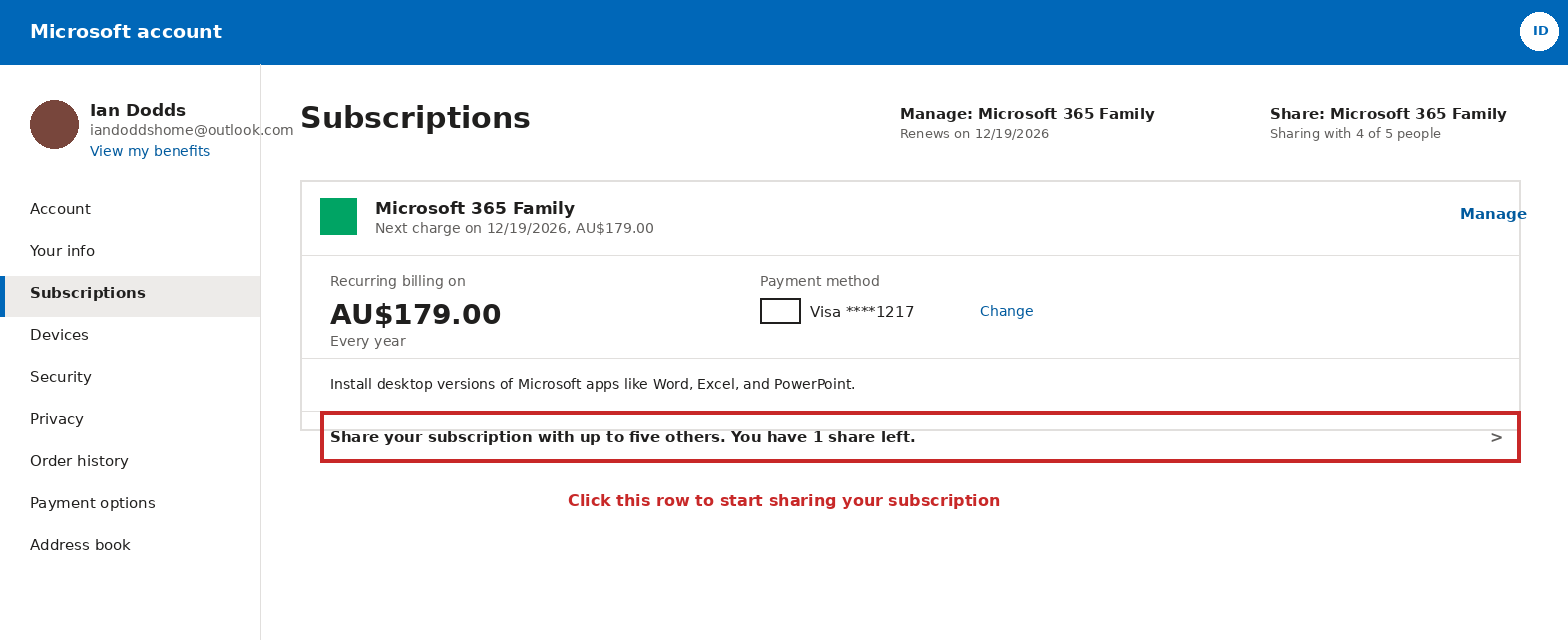
Step 2: Choose how to invite them
A window titled Share your benefits opens with two options: Copy link (to send the invite link yourself, e.g. by text or chat) or Email invite (to have Microsoft send the invitation directly). Click Email invite.
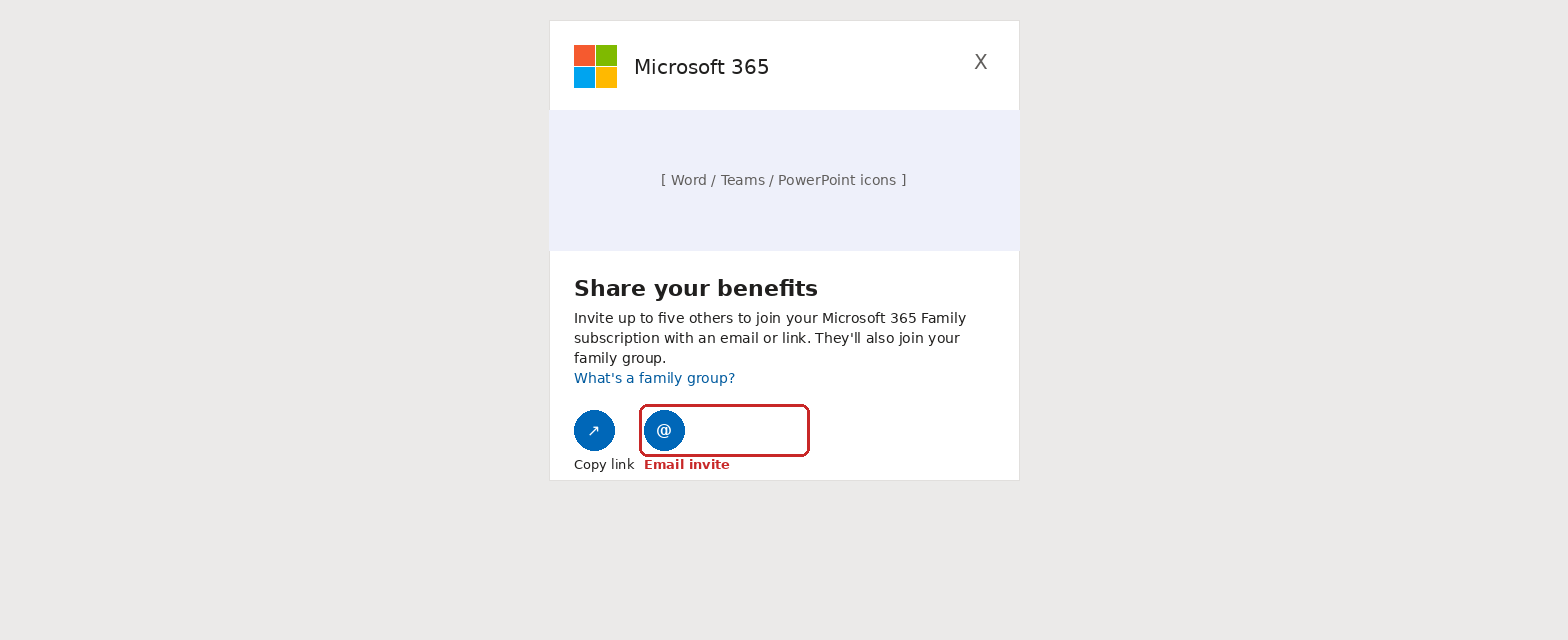
Step 3: Send the invitation
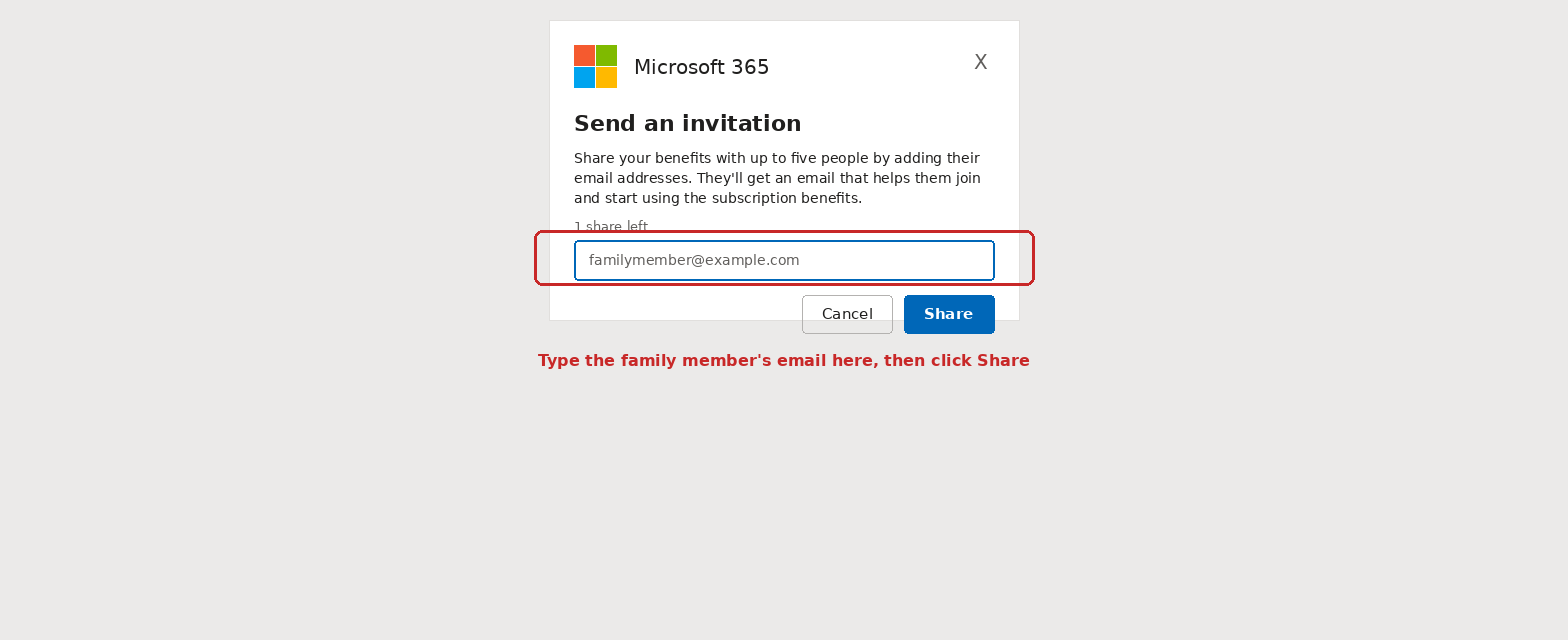
In the Send an invitation window, type the family member's Microsoft account email address in the box and click Share. They'll receive an email with instructions to join the family group and start using the subscription benefits.
Tips
- The number of shares remaining (e.g. “1 share left”) shows how many more people can still be added, up to five total.
- The invited person needs their own Microsoft account (or will be prompted to create one) to accept.
- To remove someone later, go back to Subscriptions → Share, and remove them from the list there.
- If the sharing ever ends, the recipient isn't locked out of Microsoft 365 — they can simply start their own Microsoft 365 subscription (easily added to their own Microsoft account) to keep using the apps and services.